
//
by
Team Teya
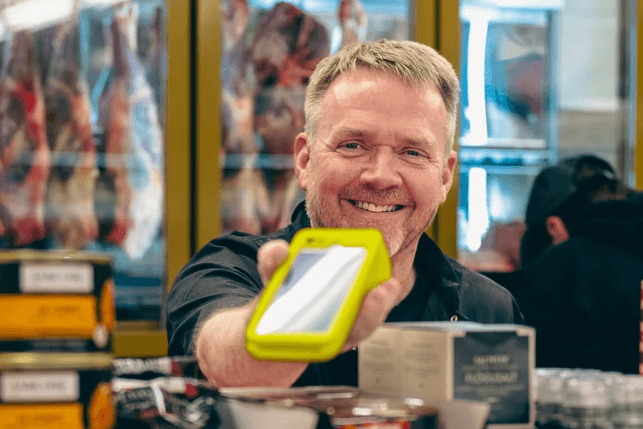
It’s the Friday lunch rush. You have a queue of hungry customers winding out the door, the kitchen is firing on all cylinders, and the atmosphere is buzzing. Then, disaster strikes. Your old card terminal freezes, loses connection, or simply refuses to take payment.
The queue stops moving. The buzzing atmosphere turns into impatient shuffling. You’re forced to ask for cash—which half your customers don’t carry—or worse, wave them away for free.
In 2026, payment downtime isn’t just an annoyance; it’s a direct hit to your revenue. Recent data suggests that for UK SMEs, IT and payment downtime can cost between £500 and £5,000 per hour in lost sales and wasted staff time.
At Teya, we believe technology should work for you, not against you. Setting up your card machine shouldn't require an IT degree or an hour on hold with support. Whether you run a busy pub or a boutique shop, this guide will walk you through a stress-free setup so you can get back to what matters: serving your customers.
What’s in the Box?
Before you start plugging things in, it’s worth checking you have everything. Most modern terminals are designed to be "plug and play," but missing a cable can stall your launch.
Typically, your Teya terminal box will contain:
The Terminal: Your new handheld device (likely Android-based).
Power Supply Unit: The plug and USB cable.
Charging Base: A dock to keep the unit charged on your countertop.
Battery: Often pre-installed, but sometimes separate.
Paper Roll: A standard 57mm thermal roll for receipts.
SIM Card: Usually pre-installed for 4G connectivity.
Tip: Keep the box for a few weeks. If you ever need to move premises or return the device for an upgrade, having the original packaging ensures it stays safe during transit.
Step 1: Powering Up and Charging
Your terminal might arrive with some charge, but we always recommend giving it a full boost before your first shift.
Connect the Base: Plug the power cable into the charging base and the other end into a mains socket.
Dock the Terminal: Place the device onto the base. You should see a battery icon light up on the screen.
Power On: Hold the power button (usually on the side or top right) for about 3-5 seconds until the Teya logo appears.
If you are setting up mobile card machines for restaurants, battery life is critical. A fully charged modern terminal should last a full day of trading, but getting into the habit of docking it between table services prevents mid-shift power panics.
Step 2: Connecting to the Internet
This is the most important step. A card machine without a connection is just a paperweight. Most Teya terminals come with dual connectivity: WiFi and 4G Mobile Data.
Connecting via WiFi
WiFi is generally faster and more stable for indoor environments.
Go to Settings on the terminal touchscreen.
Select Network or WiFi.
Find your business network name.
Enter your password carefully (watch out for capital letters).
Once connected, look for the WiFi symbol in the top corner of the screen.
Connecting via 4G (The Backup Plan)
If your WiFi goes down (or you're operating a food truck at a festival), the 4G SIM is your lifeline. Teya terminals come with a pre-installed SIM that connects to the strongest available network.
Check for the 4G/3G symbol at the top of the screen.
If you don't see it, go to Settings > Mobile Network and make sure "Mobile Data" is toggled ON.
Why this matters: Resilience is key. If your broadband cuts out during a storm, the terminal automatically switches to 4G, ensuring you never miss a sale.
Step 3: Loading the Receipt Paper
Even though many customers now prefer digital receipts, you legally must offer a receipt if asked. Plus, some customers just like having a paper record.
Locate the latch on the top or back of the terminal printer compartment.
Lift the lid.
Drop the paper roll in. Crucial: The paper must pull from the bottom of the roll, not the top. If it pulls from the top, the paper will feed out blank.
Close the lid until it clicks.
Tear off the excess paper.
Step 4: The Penny Test
Never wait for a real customer to test your machine. Perform a "penny sale" to make sure the money actually moves.
Enter £0.01 on the keypad.
Tap your own debit card or phone to enable contactless payments.
Wait for the "Approved" message.
Check that a receipt prints (if selected).
Void the transaction (optional, or just treat it as a tiny investment in peace of mind).
If the transaction fails, check your internet connection first. 90% of setup issues are simply due to a wrong WiFi password or poor signal.
Step 5: Integrating with Your EPOS (Optional)
If you use a Point of Sale (POS) system, you don't want to type the amount into the till and then type it again into the card machine. That doubles the work and doubles the risk of human error (e.g., typing £10.00 instead of £100.00).
Integrated Setup: Your Teya terminal can "talk" to your till. When you press "Card" on your EPOS screen, the amount automatically appears on the card terminal.
Setup: This usually involves entering the terminal's IP address into your EPOS settings. Check your specific card machines for retail guide or ask Teya support for a quick walkthrough.
Troubleshooting Common Setup Issues
Even the best tech can have a bad day. Here are three common hiccups and how to fix them fast:
"Connection Error": Toggle WiFi off and on again. If that fails, switch to mobile data.
"Pedestal/Tamper Alert": This sounds scary, but it usually means the device was dropped or knocked hard. It’s a security feature to prevent hacking. You will need to contact Teya support to reset it.
Blank Receipts: You’ve likely put the paper roll in upside down. Flip it over so the paper feeds from the bottom.
Why Setup with Teya is Different
We know you didn't start a business to become an IT technician. That’s why we configure as much as possible before the box even leaves our warehouse.
Pre-Activated: Your merchant account is linked to the device before shipping.
UK-Based Support: If you do get stuck, you aren't talking to a chatbot. You’re speaking to a real person here in the UK who understands that every minute offline is money lost.
Next-Day Settlements: Once you’re set up, the money you take today lands in your bank account tomorrow (even on weekends).
Ready to Start?
Setting up your payments shouldn't be a headache. It should be the easiest part of your day. With Teya, you get modern, reliable terminals that are ready to work the moment you take them out of the box.
Don't let outdated tech slow down your queue.